
FeltTD Quick Guide
FeltTD runs a poker tournament for the whole room from one PC: the clock on the TV, the floor on phones, the desk in the manager — on the club’s own network, so a night never depends on the internet.
For the FeltTD release of October 2026.
Part 1 · Your first night
Follow these steps in order the first time: setup, check the settings, players in and seated, start the clock, play and correct, results and close.
1. Before your first night
One PC runs the night: the tournament PC. TVs, phones, tablets and a second desk all connect to it over the club’s own network.
- Connect the TV first with an HDMI cable, then start FeltTD.
- Windows: double-click FeltTD.exe. The manager opens on the PC; the clock opens full screen on the TV.
- Mac: the first time, right-click FeltTD.command and choose Open; after that a double-click is enough.
- TV plugged in later, or the clock on the wrong screen? Preferences > Screens & floor > OPEN HDMI SCREEN, drag the window to the TV and press F11 there.
- Name your club: Preferences > Club — club name, currency and languages (the manager and the room can each have their own).
- Pick the room’s look: Preferences > Screen templates.
- Set up a second copy: Preferences > Tournament files > backup mirror on a USB stick or another disk, then SAVE & TEST WRITE.
FeltTD needs no internet during a night.
2. Connect the room
Screens only watch, so they connect without asking. Phones and tablets that change things ask once, and you approve them on the tournament PC.
More screens (a smart TV, a mini PC): Preferences > Screens & floor > Network screen. Scan the QR or type the address on that screen; it appears under CONNECTED SCREENS. Give it a name, pick which tournament it follows, and use Identify to see which screen is which.
Floor phones and tablets: Preferences > Devices & access.
- On the phone, open the address under Address for other devices, or scan the floor QR.
- Type a name (“Floor tablet”) and press Request access.
- On the PC, choose ALLOW AS FLOOR or ALLOW AS FULL TD.
| Rights | Can do |
|---|---|
| Floor | Players, tables, the clock and the speed bar. Tournament settings only with the tournament code |
| Full TD | Runs the whole night, corrections included. Club settings and Preferences stay on the PC |
The tournament code is new with every tournament and after twelve hours. An old phone keeps its floor rights, but can no longer change tournament settings.
3. Set up the tournament
Every tournament starts in Events, a plain one-night tournament too. The Tournament tab sends you there with New tournament.
- Choose Single tournament.
- Choose a starting point: Use a template, Same as last time (the club’s last night) or New setup.
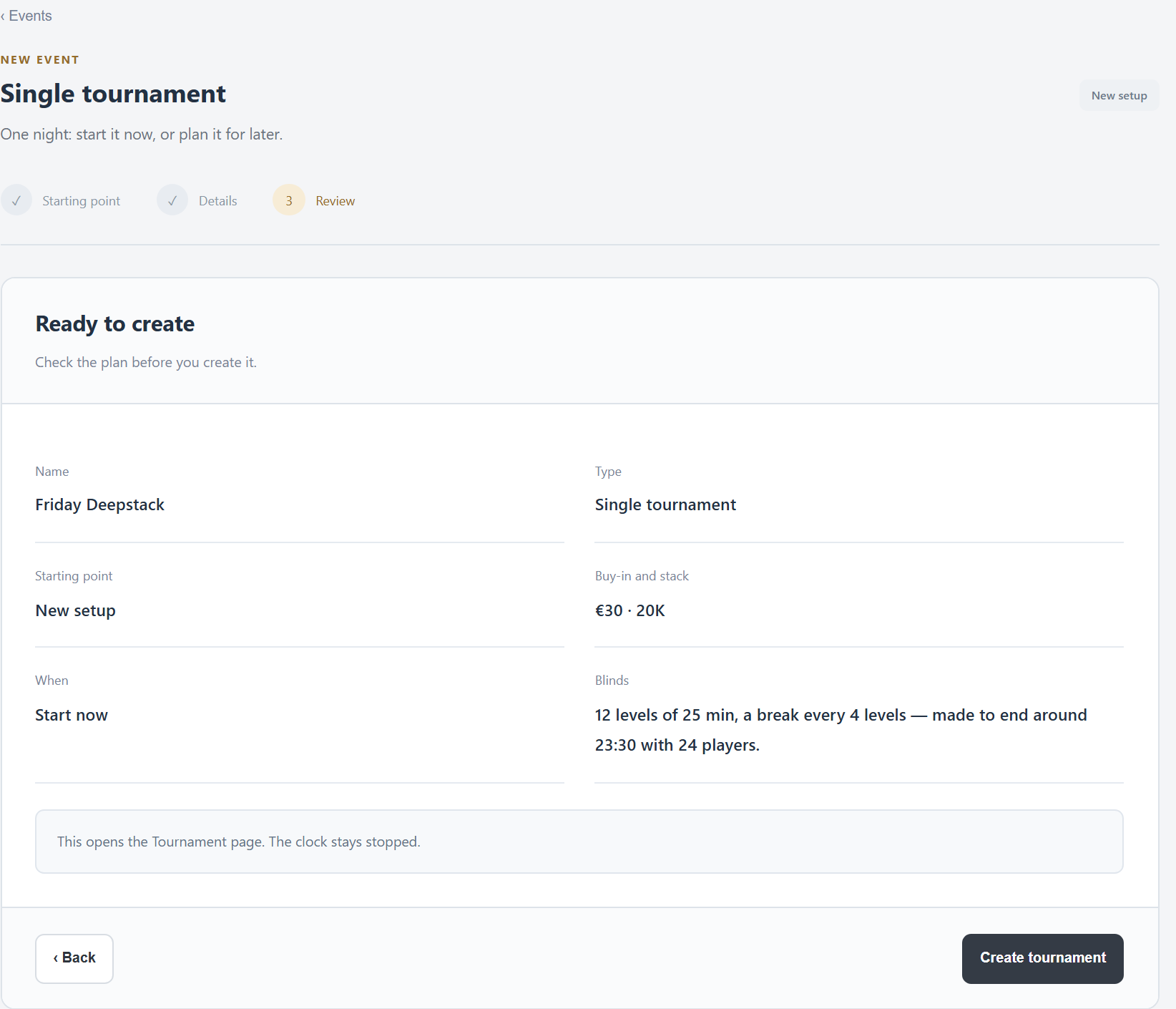
- Details: the name, Start now, when it should end and how many players you expect, the buy-in and the starting stack. FeltTD builds the blinds to fit.
- Review, then Create tournament: it opens on the Tournament tab with the clock stopped.
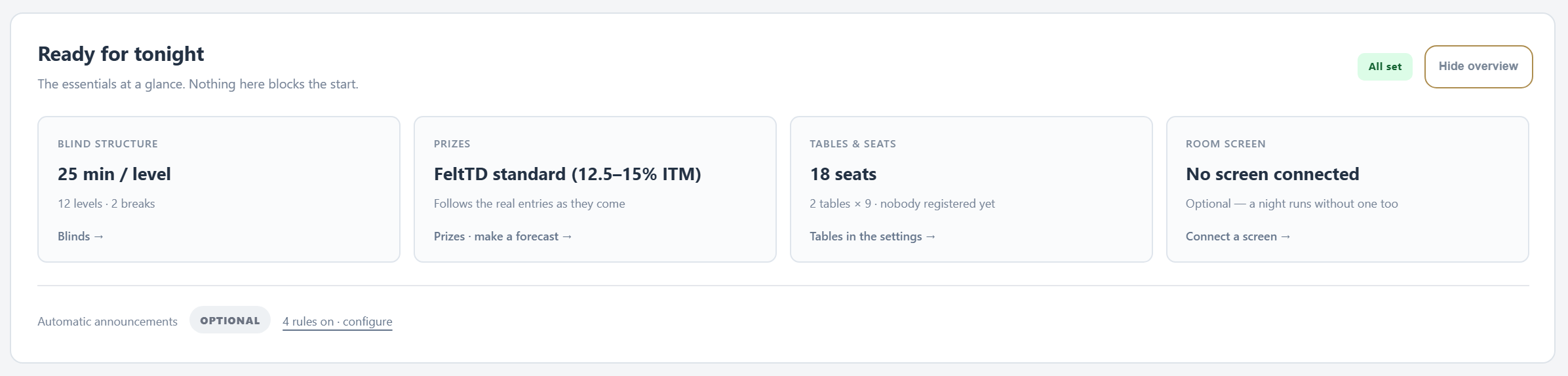
Then check the settings on the Tournament tab. Ready for tonight shows the essentials at a glance; nothing there blocks the start.
- Buy-in (price) and Starting stack.
- Rebuys and Add-ons: each has an On/Off switch beside its heading. With rebuys on, SAME AS BUY-IN keeps it simple; ADVANCED REBUYS sets its own price and stack. The switch locks once rebuys are sold.
- Late registration: until a clock time, or through a level.
- Blinds tab: edit the levels and press APPLY TO TOURNAMENT, or LOAD a template. No structure yet? Tools > Structure generator makes one from the hours you want to play.
- Prizes tab: AUTO PRIZES pays out by the distribution key and grows with the field; MANUAL is for deals, a paid bubble or fixed amounts.
Keep what works: SAVE AS TEMPLATE for blinds, SAVE AS MODEL… for prizes, and Tools > Library to reuse them or take them to another club.
4. Players in and seated
A player goes through three states, and each one is shown separately:
| State | Means | Example |
|---|---|---|
| Registered | On the list, not paid yet | Emma booked a seat by phone |
| Paid | Bought in: counts for the pool and the prize table | Emma paid €30 at the desk |
| Seated | Has a table and a seat | Emma: table 2, seat 5 |
- Players tab: type a name, then BUY-IN (paid now) or REGISTER (pays later). A name FeltTD doesn’t know yet: ADD & BUY-IN.
- AUTO-SEAT draws a seat at the table with the fewest players.
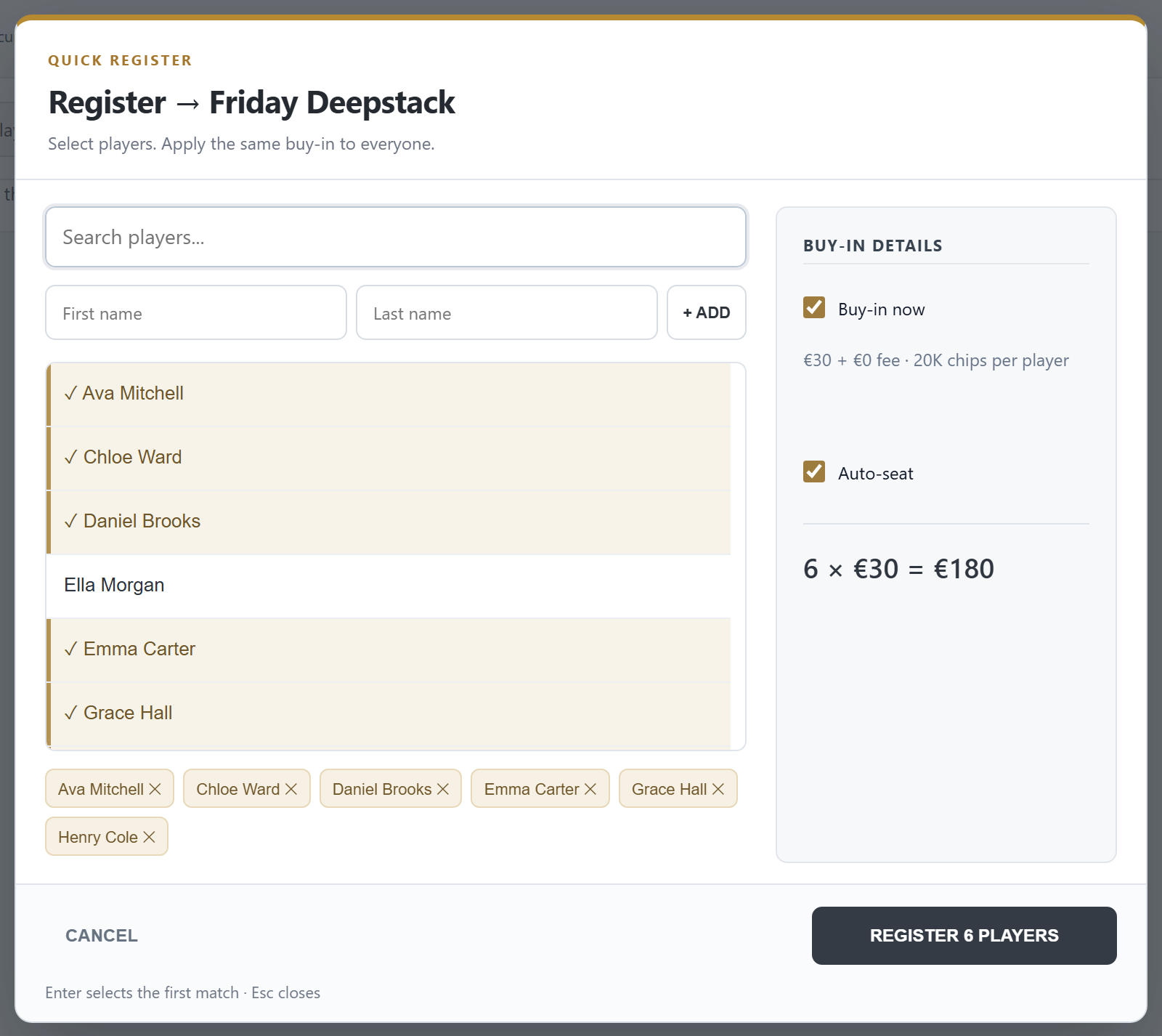
- Many at once: press F2 for Quick register, tick Buy-in now and Auto-seat, pick the players, and register them all in one go.
- Seat slips: Print seat slips gives every player a slip with table and seat.
Late arrivals are registered the same way while late registration is open.
5. Start and run the clock
Press ▶ START on the Tournament tab. The clock runs on every screen, and from then on the top bar of the manager holds it: previous level, −1 minute, start/pause, +1 minute, next level.

- Undo: the chip Last action — click to undo in the top bar takes the last action back: a bust, a rebuy, a seat move.
- What the TV shows: the top-bar buttons switch it — CLOCK, LOBBY, SEATS, BLINDS, RANK, CHIPS, PRIZES, PODIUM.
- A message for the room: the announce button puts a free line on the TV (“Dinner is served”); right-click clears it.
- Chip-up: tick it on a break in the Blinds tab and the clock shows the chip-up message before that break.
- Status lights in the top bar show the connected screens and floor phones, the backup and the internet.
6. Busts, rebuys and tables
- Bust: press BUST on the player. FeltTD asks who made the elimination (optional; needed for bounties), then CONFIRM BUST. If the player may still rebuy, REBUY INSTEAD is right there.
- Two out in the same hand: right-click > Out in the same hand…. The player who started the hand with fewer chips finishes lower; equal stacks share the places.
- Rebuy, re-entry, add-on: on the player’s row, and on the floor phone.
- Wrong bust? Undo it in the top bar, or Unbust on the player.
- Uneven tables: the top bar says so. Balance tables shows who moves where, and can show the moves on the TV for two minutes.
- Breaking a table: when everyone fits at fewer tables, FeltTD offers BREAK TABLE with the new seats drawn; REDRAW draws again.
- The bubble: ✋ H4H starts hand-for-hand. Click it when every table has finished the hand. It ends by itself when the bubble bursts.
7. Prizes and the end of the night
The prize table follows the field by itself: more players, more places paid, always adding up to the pool to the cent.
- Rounding: prizes round to your step, set under Prizes › Round prizes to (5 by default). If the step is bigger than the smallest prize, FeltTD uses a smaller one and says so under the prize list.
- A deal at the final table: Tools > Deal calculator shows ICM and a chip chop side by side and can put the proposal on the TV. Agreed? Switch Prizes to MANUAL and enter the amounts.
- The end: when one player is left, the tournament finishes by itself and the TV shows the winner. RESULTS & CLOSE leads to the finished page.
- After the night: View summary (money, chips and results), Print payouts, Replay this night or Ranking. An error found later? Correct this night reopens it for corrections.
- The books: Tools > Money report — what came in, went out and stayed, per night or per period, with CSV.
8. Keeping it safe
Every action is written to disk the moment you make it. After a power cut or a crash, start FeltTD again: it reopens every saved action and the night continues where it was. What protects you against a broken disk or a lost PC is the second copy — so set up the mirror and test it.
- Tournament files: one .felt file per tournament, kept up to date automatically (Preferences > Tournament files).
- Backup mirror: the same page echoes every action live to a second place: a USB stick, another disk, a NAS. Press SAVE & TEST WRITE once. The top bar shows ⚠ Backup when there is no working mirror.
- Going back: the Time machine replays any night moment by moment, to look back. To really return to a moment: Tournament > MORE > Restore a moment.
- Another computer, or a broken one: Tools > Move & restore > Check this backup (changes nothing), then Restore and restart.
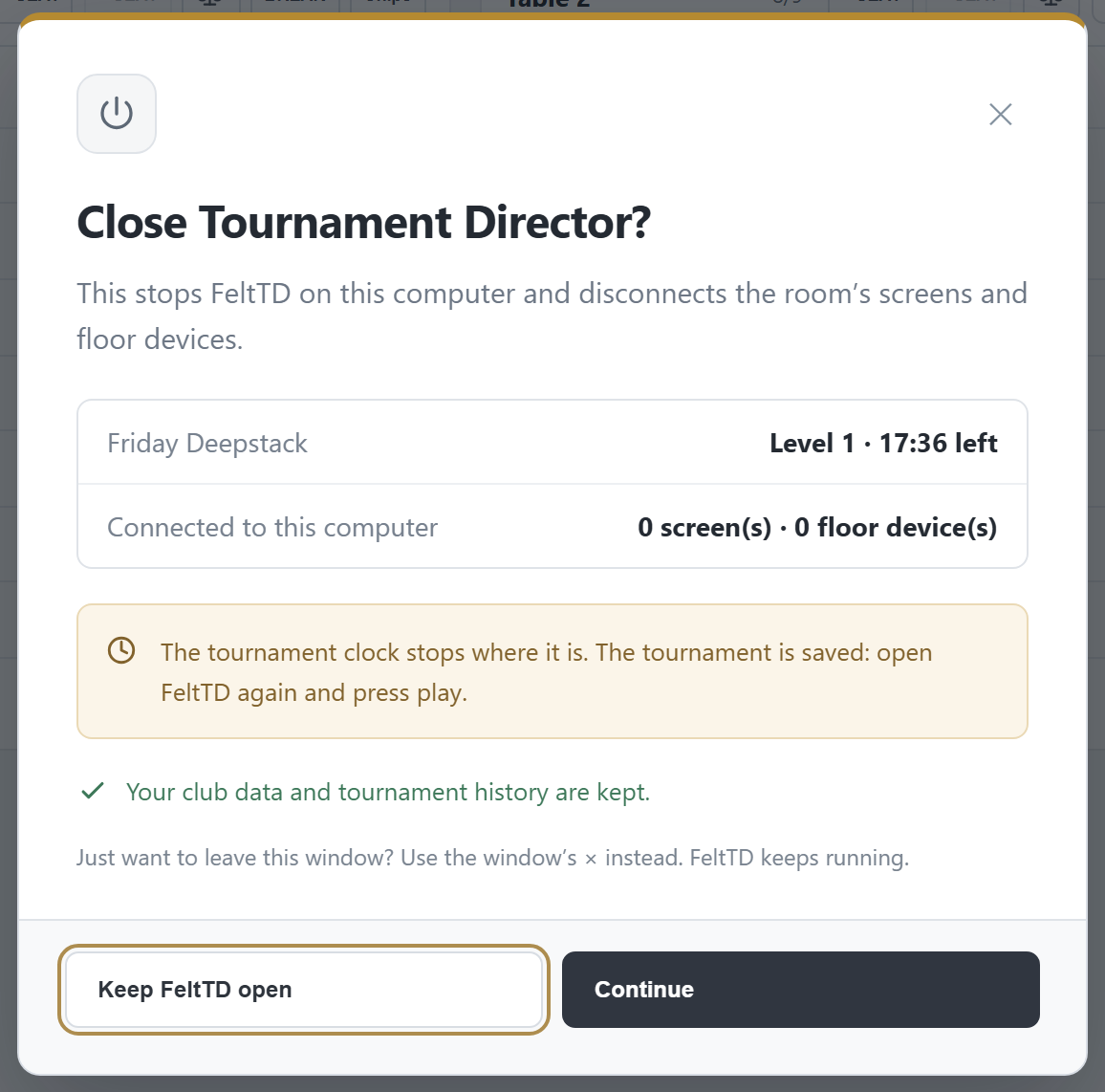
- Closing: the window’s × only closes the window; FeltTD keeps running for the screens and phones. To stop for the night, use Close Tournament Director at the bottom of the menu, on the tournament PC. A running clock stops on its second and continues there next time.
Part 2 · When you need more
Your club online
Give your club its own page on felttd.com/clubs: your next game, the tournament that is live right now, what is coming up and recent results — filled in automatically by FeltTD. Plus a live clock you paste once into your own website. Everything is set up in Preferences > Club page & website widget; every change is saved as you make it.
- Link this PC. Press Link this PC once. Your club gets its page and a widget address. Nothing is public until Publish is on, and you can switch it off at any moment.
- Your club: street and number, postcode, town, country, phone, email, website and a few words about the club. An empty field is simply not shown. The club name comes from Preferences > Club.
- Regular playing nights: a start time per weekday, with a tournament setup from your Library. The page then shows the buy-in, stack, levels and late registration under Your next game here and Coming up. Planned days of your events are added by themselves.
- On the club page: choose whether to show the next games, recent results and ClubIQ, and how winners appear: First name and initial (“Luc G.”) or No names.
- Website widget: pick the tournament (automatic = the one running), the figures visitors see (name, players left, prize pool, average stack, next level, registration deadline) and the look (Classic dark or Clean light). The preview beside it is exactly what visitors get. Copy code and paste it once in an HTML block on your website.
Good to know
- Only what you switch on leaves the PC. Full names, player lists and payments never do.
- While a tournament runs, the page updates every 10 seconds. Without internet the night goes on; the page shows its last update and hides its clock.
- A new club page works at once for anyone with the link. It appears in the public list of poker rooms after FeltTD has checked it.
- Unlink this PC removes the club page and the widget from felttd.com. The privacy rules are on felttd.com/clubs/privacy.
Events and satellites
An event holds several tournaments together; each flight or day is played as a normal tournament.
- Multi-day / flights: several starting flights, the bags go to Day 2. Under Qualification & bagging you choose what happens when a player bags twice (biggest, added up, first bag), when a flight stops (a % left, a level, or your call) and whether everyone on Day 2 is in the money.
- End of a flight: count the chips, then Bag the day. FeltTD suggests it, but never stops a flight by itself.
- Day 2 is made in Events from the bags, with all flights’ money in one pool.
- Satellite: players win seats (tickets) for another event. Tickets & target shows live how many seats the pool buys and what is left over.
- Using a ticket: at the target event’s buy-in, FeltTD asks: Pay with the ticket or Pay in cash.
The cash room
A permanent room in the tournament switcher, beside your tournaments, with its own menu.
- Cash games: your games with stakes and buy-in range, the tables, and a seat fee per time if you charge one.
- Waiting list: players join from a QR on their phone (PUT ME ON THE LIST); seat them from At the tables or Club players.
- Cash desk: the box — money in, out, fees and drop.
- On a tournament night a cash strip can run beside the tournament clock (Cash page > On the tournament screens).
Extras
- TDA Rules (Tools): the whole Poker TDA rulebook, searchable by number, word or table talk (“chop” finds dealmaking). Show on screen puts a rule on the TV, from 30 seconds to until cleared — also from a floor phone. Add your own house rules beside them.
- ClubIQ: the strength of your club’s player field, built from your own results — never a rating of the venue.
- Automation (Preferences): sounds, videos and messages on hotkeys.
- Chips bank and Mystery bounty (Tools): how many chips to lay out, and envelope prizes from a bounty pool.
Where to find what
| Tab | What it is for |
|---|---|
| Events | Every new tournament, multi-day events and satellites |
| Tournament | Start, settings, finish; MORE for files and restore |
| Blinds | The structure, templates, chip-up on breaks |
| Prizes | Auto or manual payouts, pot forecast, print sheet |
| Players | Register, buy-in, bust, rebuy, add-on (F2 = quick register) |
| Tables | Seats, balancing, breaking tables, chip counts |
| Ranking | Club league standings |
| Database | All the club’s players |
| Summary | Money, chips, payouts and results of the night |
| Time machine | Replay any night |
| ClubIQ | The strength of the club’s player field |
| Tools | Deal calculator, structure generator, money report, TDA rules, library, restore |
| Preferences | Club, club page, screens and floor, devices, files |
Questions, or a problem on the night: info@felttd.com.